Setting Up PostgreSQL Development Environment with VS Code, DevContainer, and Windsurf
Developing PostgreSQL from source on Windows can be challenging due to the need for numerous build tools and dependencies. Using a development container (DevContainer) provides a consistent, isolated environment that works seamlessly across Windows, macOS, and Linux, eliminating platform-specific setup hassles.
Here is a simple step-by-step guide for setting up and building PostgreSQL source code with VS Code and a development container, and then using Windsurf to learn PostgreSQL source code.
Setup and Build PostgreSQL in VS Code
1. Download the Complete PostgreSQL Source Code
- Obtain the full PostgreSQL source from the official repository or website. Typically run:
1
git clone https://git.postgresql.org/git/postgresql.git
2. Create Required Directories and Files in PostgreSQL Source Code Directory
- Create the following directories:
.vscode.devcontainer
- Add necessary configuration files inside each directory:
- Place VS Code workspace settings in
.vscode - Add development container configuration files (e.g.,
devcontainer.jsonandDockerfile) in.devcontainer.
- Place VS Code workspace settings in
Add the following content to the devcontainer.json file:
1 | |
Add the following content to the Dockerfile file:
1 | |
For editors using the Microsoft C/C++ extension, it’s recommended to add a
c_cpp_properties.jsonfile to the.vscode.1
2
3
4
5
6
7
8
9
10
11
12
13
14
15
16
17
18
19
20
21
22{
"configurations": [
{
"name": "Linux",
"includePath": [
"${workspaceFolder}/**",
"${workspaceFolder}/src/include",
"${workspaceFolder}/src/include/utils",
"${workspaceFolder}/src/backend",
"${workspaceFolder}/src/backend/utils",
"/usr/include",
"/usr/local/include"
],
"defines": [],
"compilerPath": "/usr/bin/gcc",
"cStandard": "c11",
"cppStandard": "c++14",
"intelliSenseMode": "linux-gcc-x64"
}
],
"version": 4
}For editors (e.g., Windsurf) using clangd instead of the Microsoft C/C++ extension, it’s recommended to add a
.clangdconfiguration file and acompile_commands.jsonfile to the project root.
.clangd
1 | |
compile_commands.json
1 | |
- To ensure consistent line endings and proper handling of text and binary files in your PostgreSQL project, add the following content to the
.gitattributesfile in project root:
1 | |
This configuration will automatically normalize line endings for text files to LF, and protect binary files from unwanted line ending conversions, improving cross-platform compatibility.
Finnally, the newly created directories and files and modified files should look like this:
1 | |
3. Reopen Folder in Container (VS Code)
- In VS Code, use the “Dev Containers: Reopen in Container” command to open your workspace within the defined development container. If you can’t find this command by Ctrl+Shift+P (or Cmd+Shift+P on macOS), you can install the Dev Containers extension from the VS Code marketplace.
4. Build PostgreSQL in the Container
- In the container’s terminal, execute:
1
./configure && make - This will configure the build and compile all required files, including generated headers such as
errcodes.h.
These steps ensure a stable environment for building and developing PostgreSQL efficiently with VS Code and containers.
Access this Devcontainer from Windsurf
- Close VS Code, the devcontainer will also stop automatically. No way to keep it running.
- Use
docker ps -ato find the container id of this devcontainer. - Use
docker start <container_id>to start the devcontainer. - Open Windsurf, use
Open a Remote Window -> Attach to Running Containerto attach to this devcontainer. - Windsurf cannot use Microsoft C/C++ extension anymore, use clangd instead. Install clangd extension in Windsurf.
- In Windsurf, open the postgresql source code directory, should be
/workspaces/postgresql.
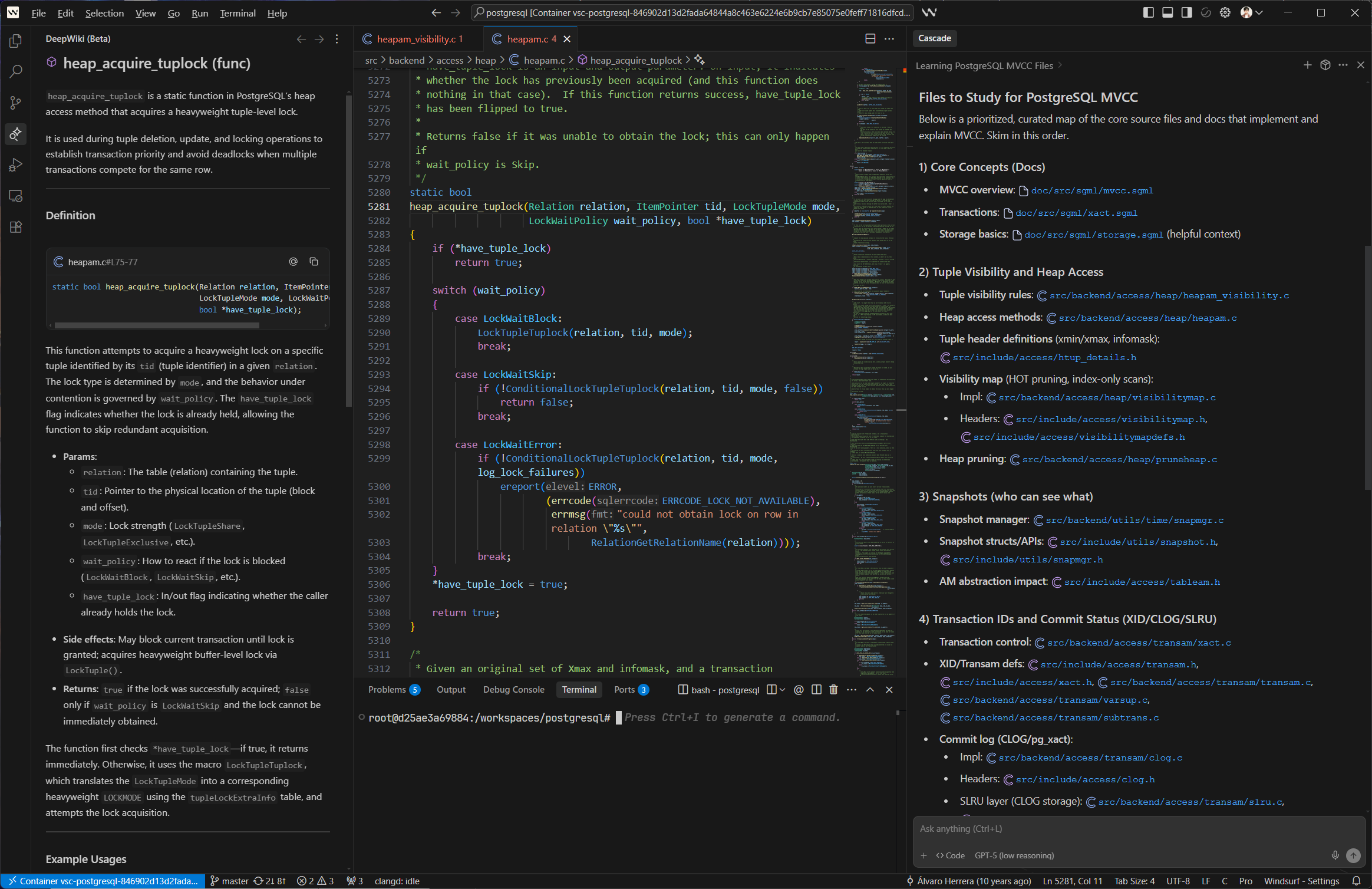
Thanks to the Cascade and the latest feature - DeepWiki of Windsurf, you can now enjoy the brand new learning experience powered by AI.